 Finalizing your document
with the New Document Wizard
Finalizing your document
with the New Document Wizard
Finalizing your document
with the New Document Wizard
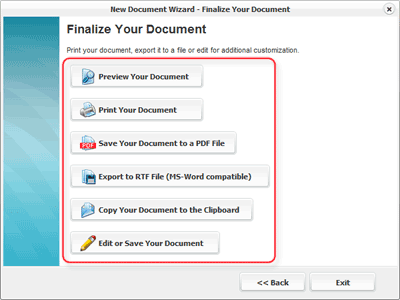
With your document sections and fields finalized, it is time to export, print or edit the document .
 Open a window to review formatting and text
details. Closing the preview window will return the user to the New
Document Wizard.
Open a window to review formatting and text
details. Closing the preview window will return the user to the New
Document Wizard.

Compile the document and open a print dialog window. Use this window to choose the correct printer, number of pages to print and also the number of copies. Press the "OK" button to begin printing.
 Compile
your document and open a
file browser window. Use the file browser to choose a name and location to save
the document as a PDF file. Press the "Save" button to
finish exporting the PDF file.
Compile
your document and open a
file browser window. Use the file browser to choose a name and location to save
the document as a PDF file. Press the "Save" button to
finish exporting the PDF file.

Compile and export your document to an RTF file. An RTF file can be opened and edited in popular word processors such as Microsoft Word.

Copy your compiled document to the computer's clipboard. This feature is useful for copying and pasting your document into the body of an email.
 To customize your document with the Document Builder, click the
"Edit Your Document" button. Note: Customizing your document with
the Document Builder will close the New Document Wizard. All
options including printing and exporting to a PDF are available from
within the Document Builder.
To customize your document with the Document Builder, click the
"Edit Your Document" button. Note: Customizing your document with
the Document Builder will close the New Document Wizard. All
options including printing and exporting to a PDF are available from
within the Document Builder.